
Documentation's navigation
On this page
How do I access the footer configuration?
Navigate to Confluence administration > Linchpin Theme > Configuration > Footer.
Alternatively, click on the settings icon in your Linchpin header, then click on Theme > Footer.
Here you can find alle the color changes that you can make to your footer

How do I style my footer content?
You can style your footer accordingly to your corporate design.
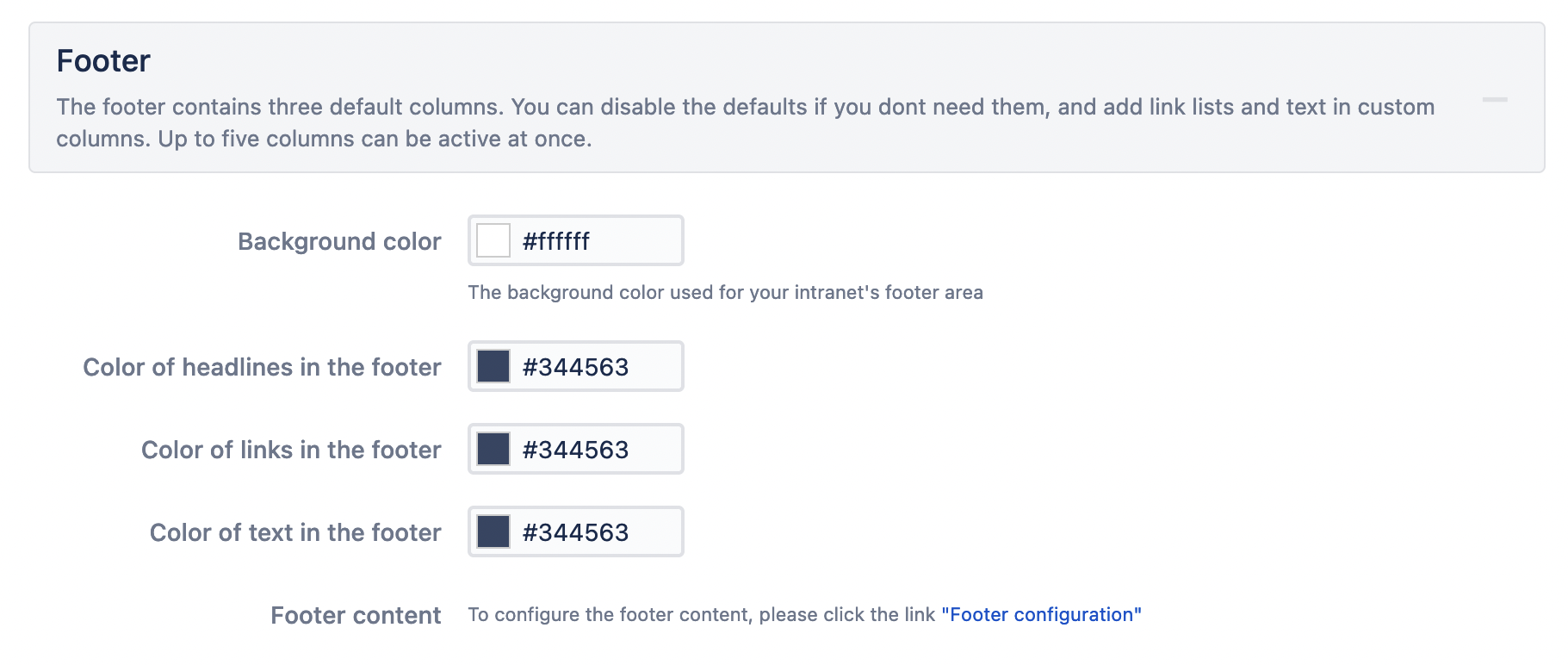
Background color
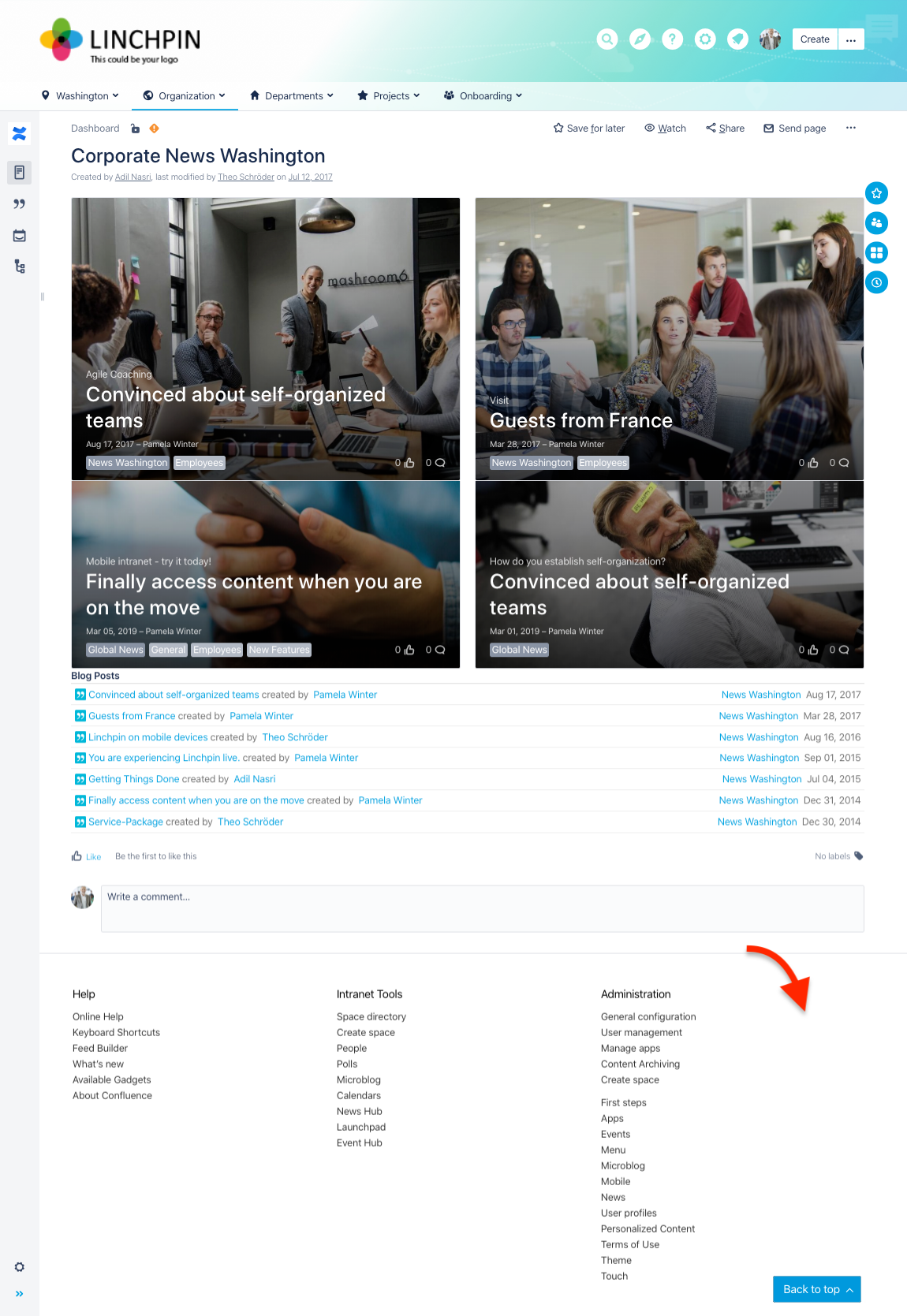
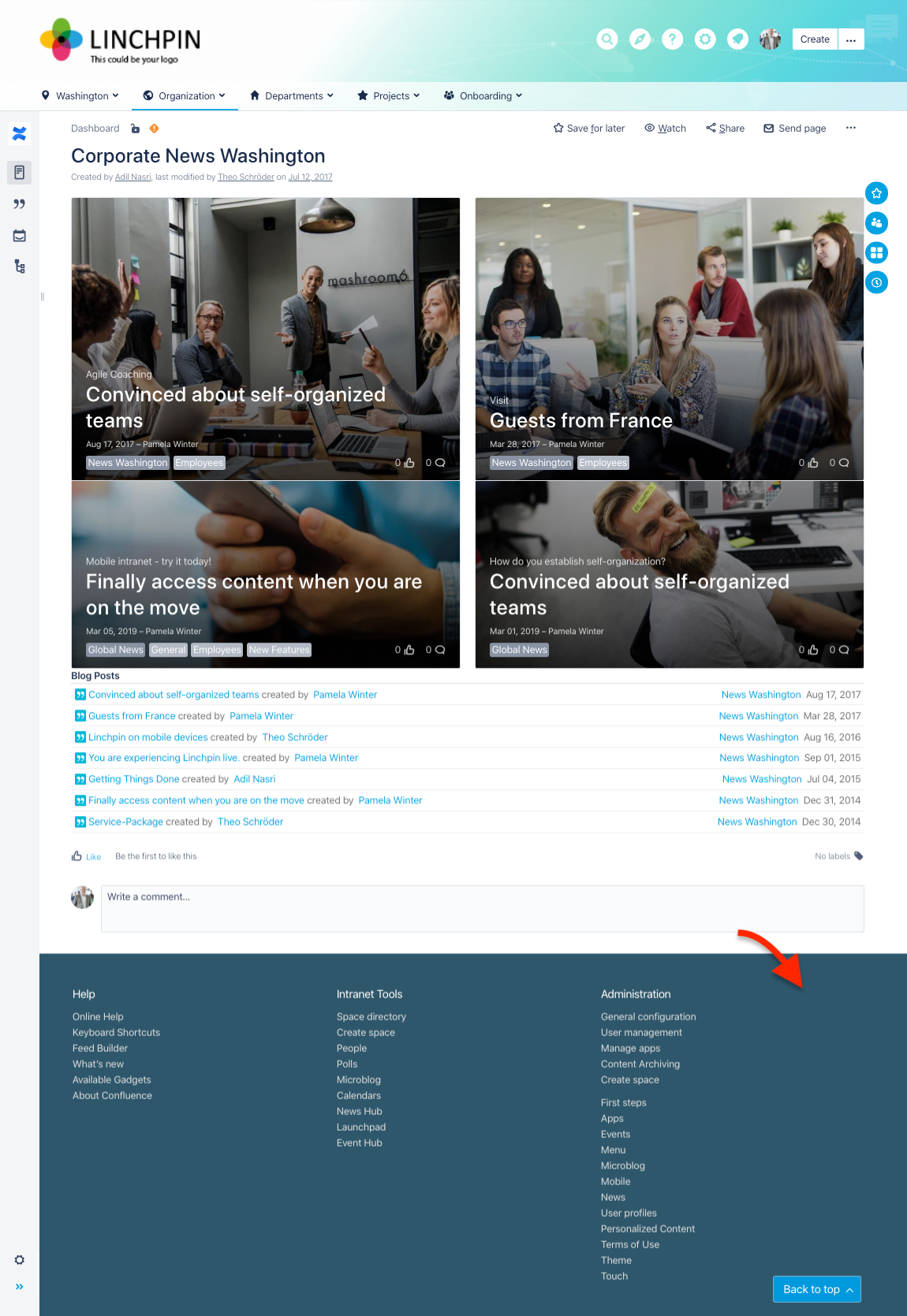
Set the background color for your footer.
You can use our built-in color picker or enter a hex value (for example #000000 for black).
Color of headlines in the footer
Set the color of the headlines inside the footer.
You can use our built-in color picker or enter a hex value (for example #ffffff for white).
Color of links in the footer
Set the color of the links inside the footer.
You can use our built-in color picker or enter a hex value (for example #ffffff for white).
To learn how to customize the columns of your footer, click here.
Please note: Make sure that Linchpin Theme is active.
Visit our documentation on how to activate your theme to learn more.

☁️ Looking for a Cloud-based Intranet?
Check out Mantra, your go-to alternative to Linchpin in the Atlassian Cloud!
Mantra is your a comprehensive solution for connecting teams, making collaboration a breeze, and keeping your company's internal communication strong and streamlined - all in the cloud.