Information required
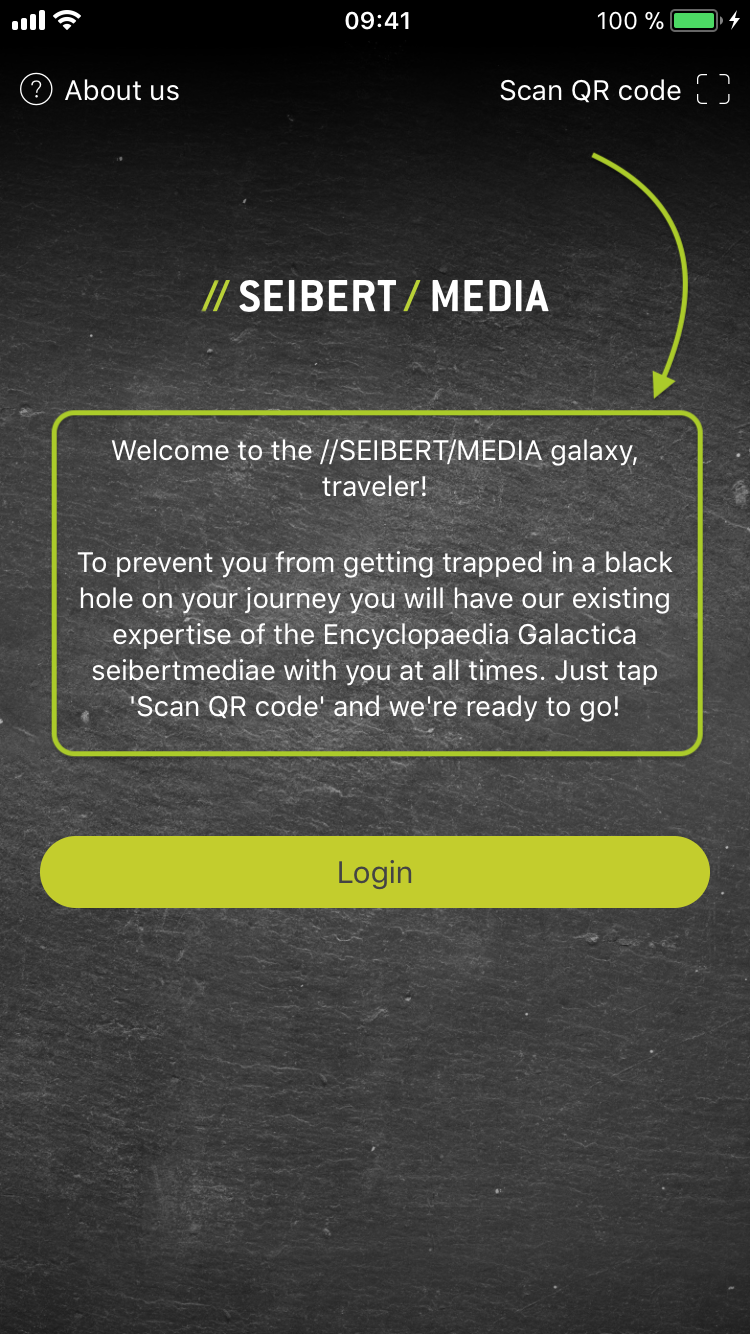
- Welcome message that is displayed in the welcome screen when no system has yet been added by the user.
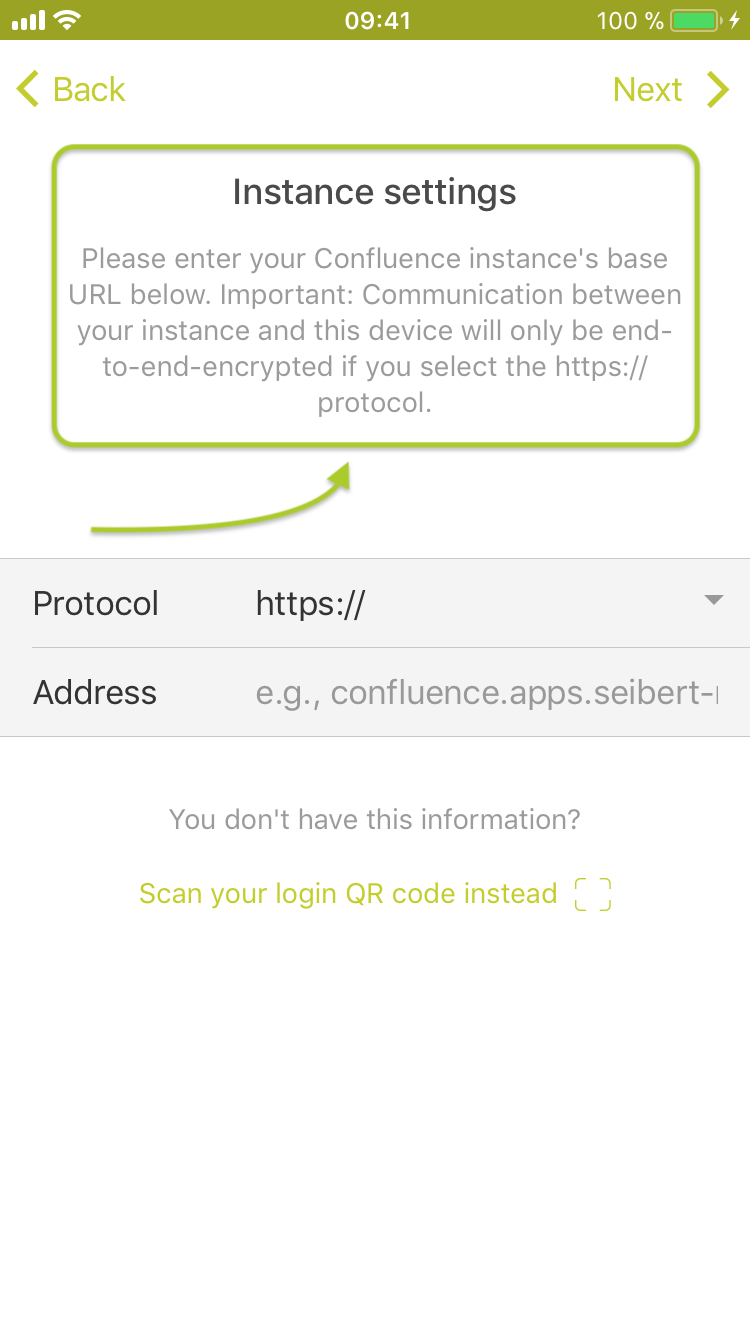
- Instructions for adding a new system login to your app. The wizard consists of three steps: Instance settings (step 1), user credentials (step 2) and the instance's title (step 3).
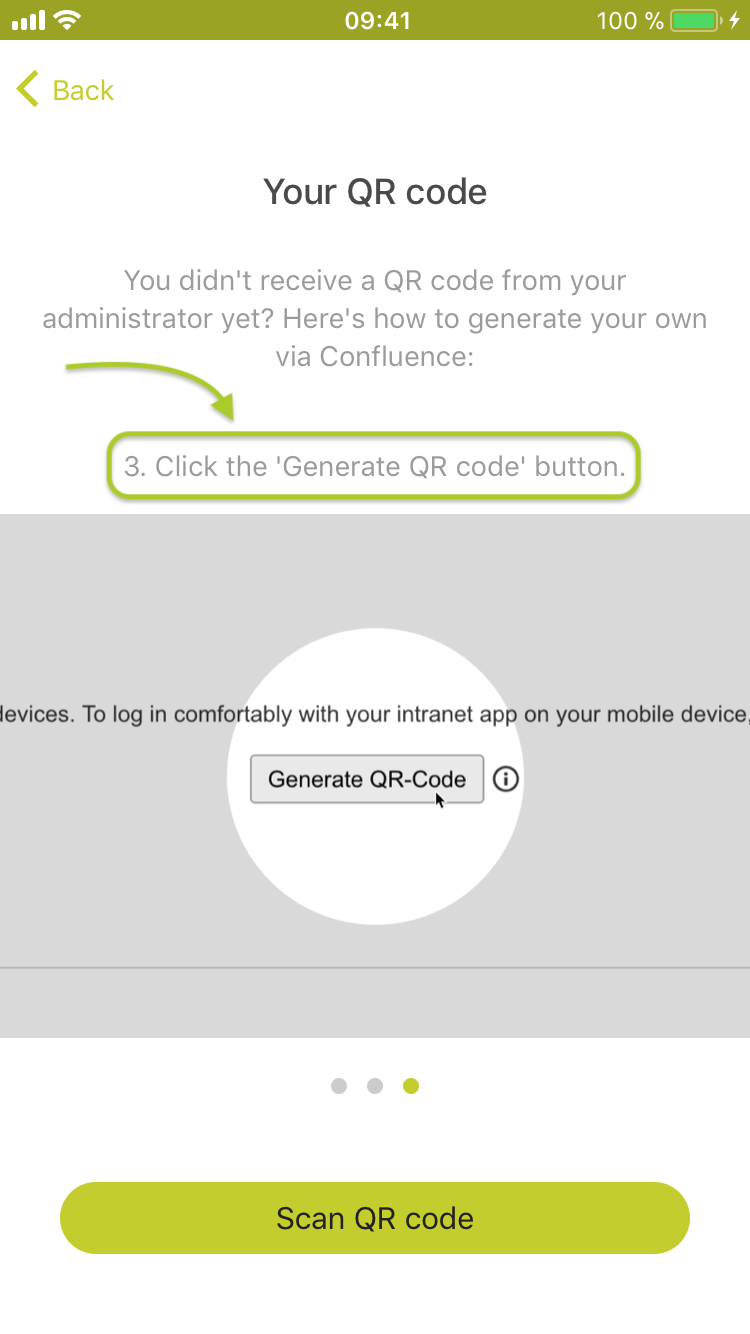
- Instructions for generating and scanning a login QR code in order to quickly add a new system login to your app. It consists of three steps (each step got its own screenshot and short description).
Requirement details
| Information | Your answer | Example Screenshot |
|---|---|---|
| Welcome message |
|
|
| 'Add new system' instructions |
|
|
| 'Scan QR code' instructions |
|
|
In terms of localization we currently support english and german text labels. If you plan to deploy the app for more than one language please provide us with corresponding text labels in both languages.
Please note
- You may use our default text labels below and adapt them to fit your specific intranet naming and employee needs.
Default text labels
- Step1: Please enter your Confluence instance's base URL below. Important: Communication between your instance and this device will only be end-to-end-encrypted if you select the https:// protocol.
- Step 2: Please enter your Confluence user name and password below to log in. Note: If you don't know your user credentials please contact your Confluence administrator.
- Step 3: Please enter a title for your Confluence instance below. Note: Your instance's title is being detected automatically but you can still edit it.
- Step 1: Navigate to your Profile.
- Step 2: Click the 'Mobile access' tab.
- Step 3: Click the 'Generate QR code' button.
Link tot his page: https://seibert.biz/customapptextlabels