

Linchpin User Profiles - Documentation
Create a meaningful and up to date profile
See the documentation for your Release
View Profile
Edit Profile
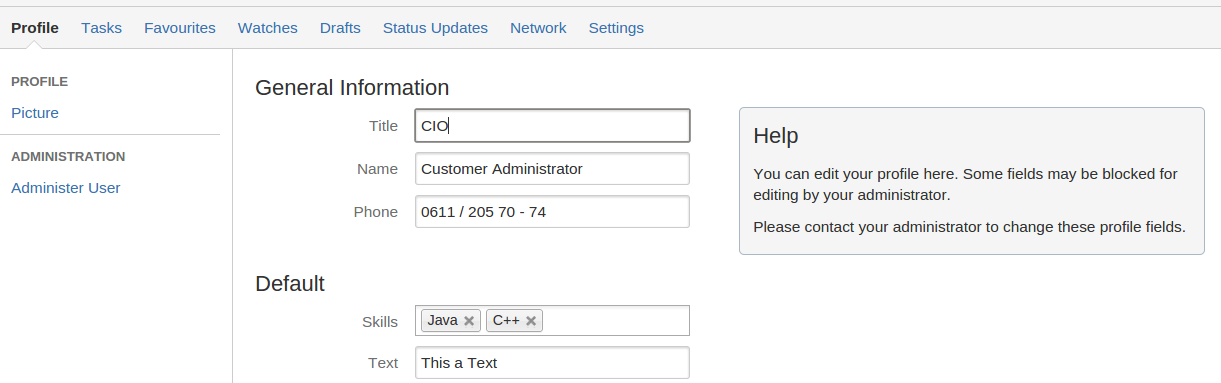
In the right top corner of your profile page you find an edit link to change your profile data.
It will show a form containing all fields you are allowed to edit.
Your Admin can add new fields, which you can edit yourself. Some field are remote filled, by a so called user directory (e.g. LDAP), these fields cannot be edited by users, ask your administrator for further information.
Profile Macro
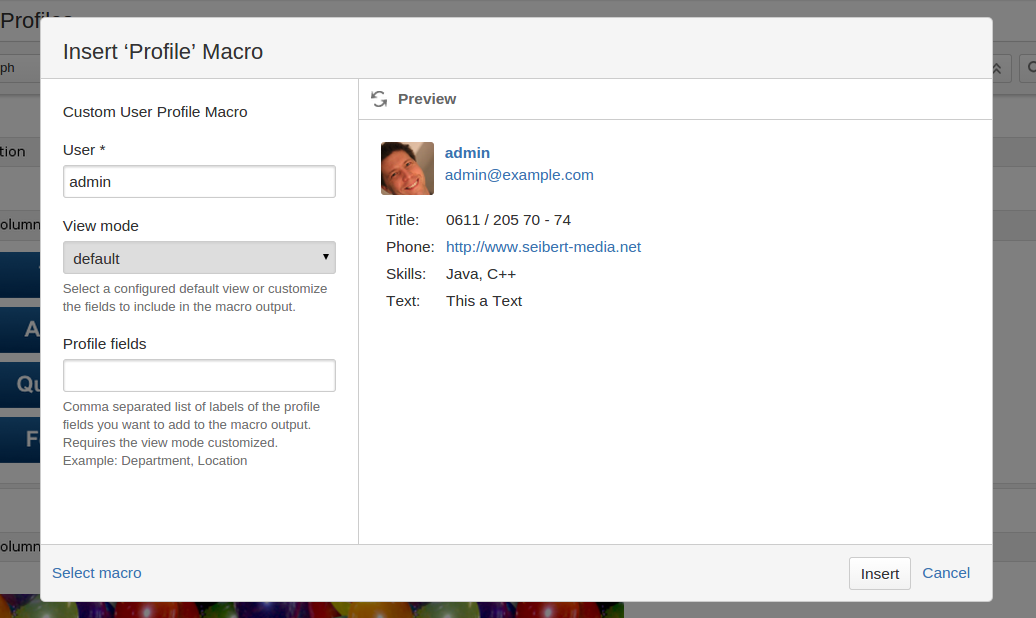
The default view mode shows all fields that your admin has configured
The user profile macro is a preinstalled Confluence macro which we overwrite to display additional information about a user. It displays all fields that the administrator explicitly marked for display in the vCard.
You can choose between view mode "default" and "custom":
- default: Uses fields configured by your administrator.
- custom: Uses custom fields from the macro configuration.
Upload Profile Picture
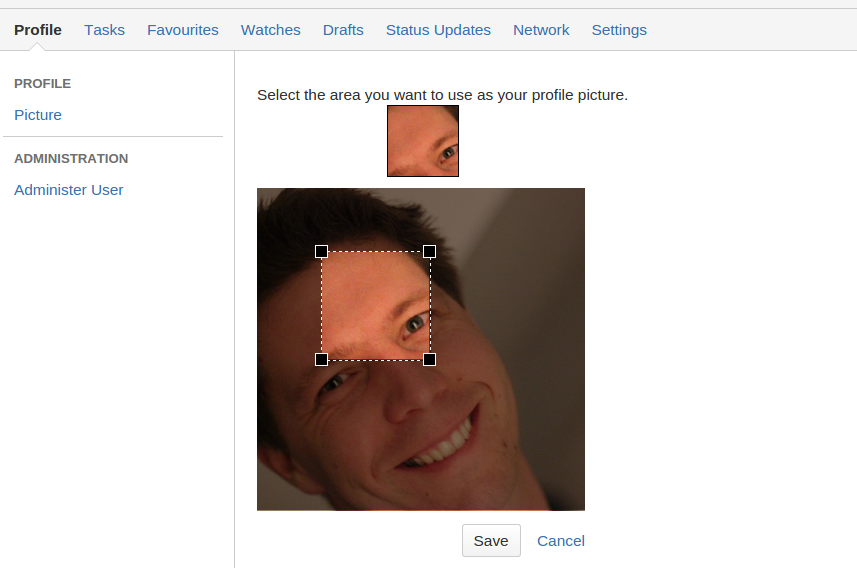
After uploading a profile picture you can crop it
Your administrator can choose between different sources for your profile picture. If the option "Upload Profile Picture" is set, you are able to Upload your own avatar and profile picture. The functionality is pretty much the same as the the way provided by confluence.