

Linchpin User Profiles - Documentation
Create a meaningful and up to date profile
See the documentation for your Release
Profile fields and profile categories
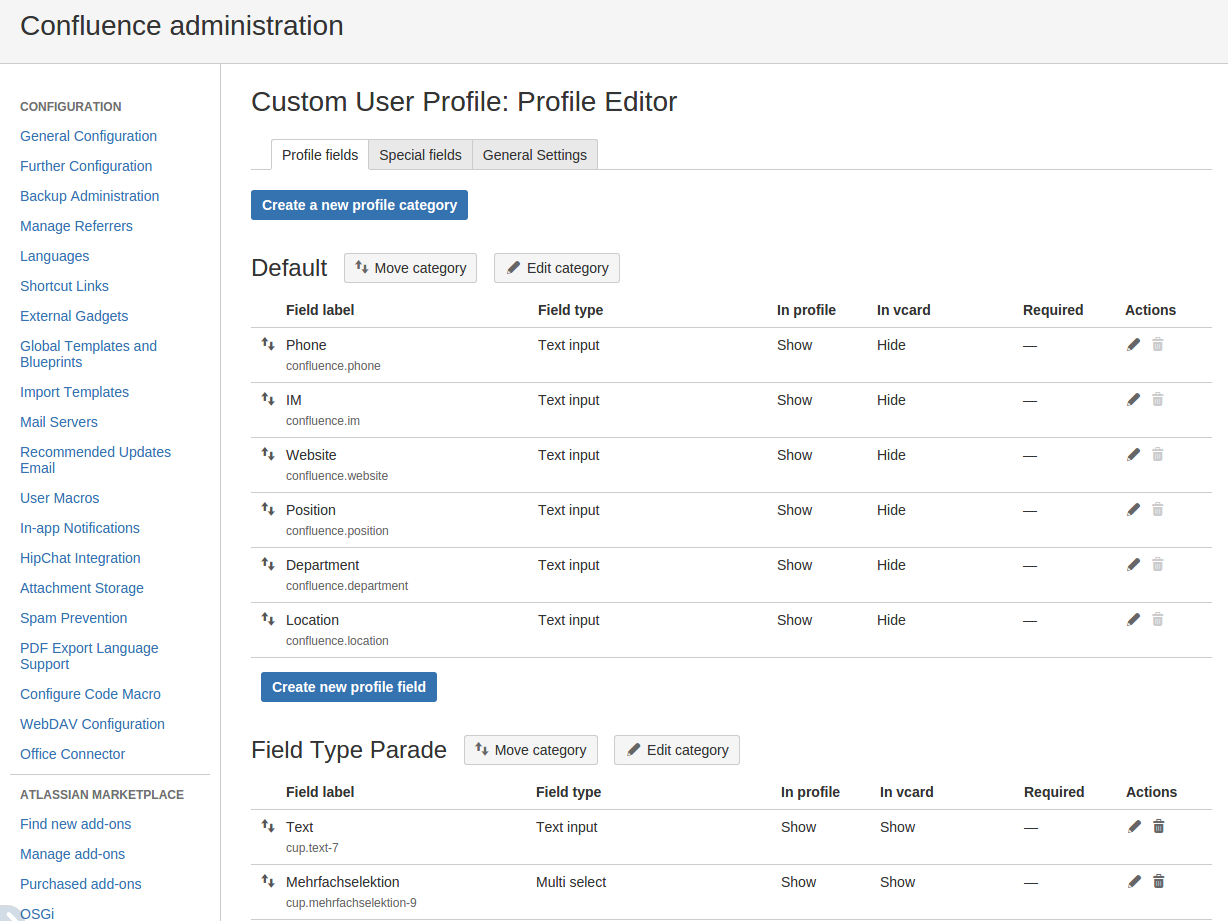
You can create and manage profile categories to group fields. Profile fields can be assigned to a profile category. Profile categories will show up as headings in the users' profiles, followed by the respective profile fields and their values. For a complete overview over all available field types please refer to CUP - Profile field types and special fields 1.15.
Easy field order configuration
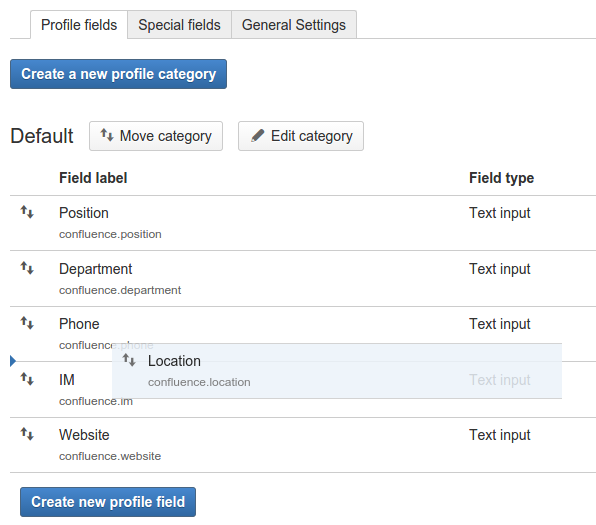
Just add fields to your profile categories as they come to your mind. If you want to change the order of these fields later on, you can always do that via drag&drop. You can even drag fields into another category if you wish so.
To reposition the categories themselves, click the "Move category" button, reorder the categories and click "Finish moving".
The order of the fields in this admin view will be reflected by the order in the actual user profile.
Synchronized Confluence profile fields
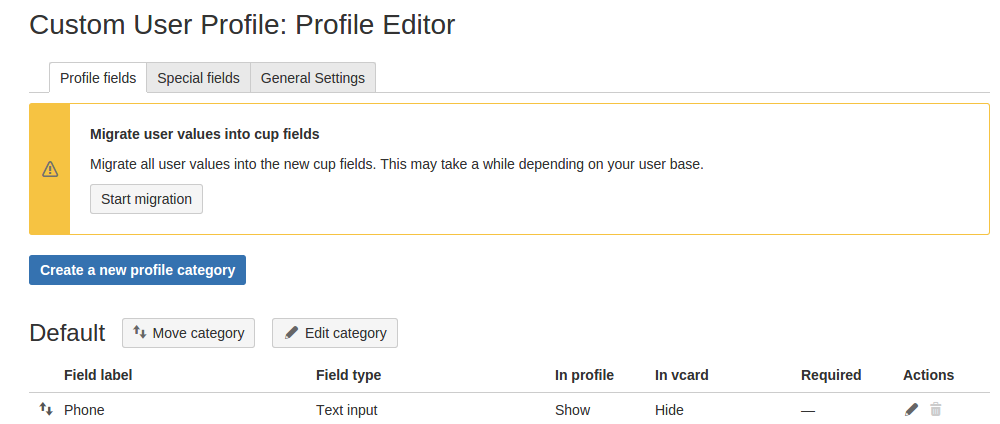
Confluence itself contains a couple of default profile fields. When you install Custom User Profile fields, all values existing in these default fields will be migrated to the respective Custom User Profile fields. As long as you have activated the Custom User Profiles addon, all profile field data is managed by it. Nevertheless all changes to migrated fields will be kept in sync with the default Confluence fields. So if you need to disable or uninstall the Custom User Profile, the Confluence profile fields will still be up to date.
Additional Settings
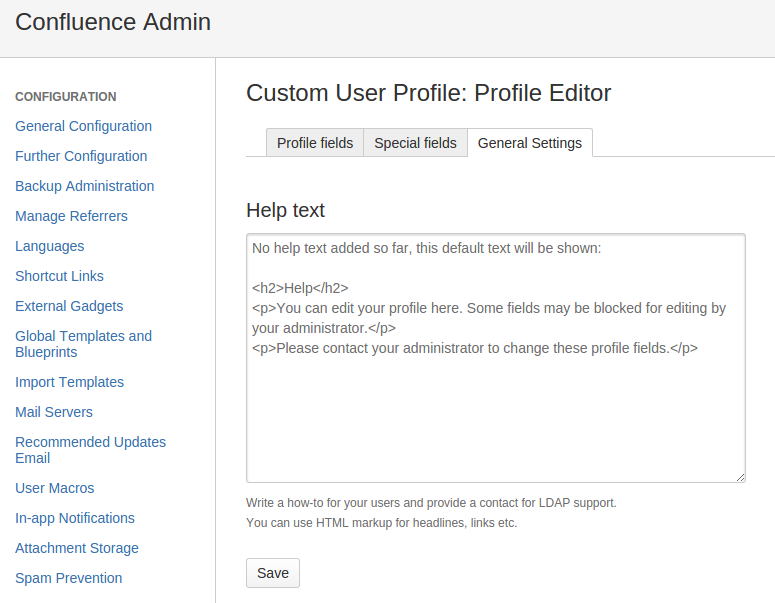
Add a help text for profile edit
Provide information for your users when they edit their profile. You can give them hints why certain fields (LDAP) cannot be edited by the user, or add a support email address.
Profile Completion Assistant
See CUP - Profile Completion Assistant 1.7 for further information