
Documentation's navigation
On this page
NEW IN SUITE 6.2 & ESSENTIALS 3.2 Linchpin Theme for Confluence is compatible with Confluence's Dark Mode. Yay!
Where to find the buttons and links configuration
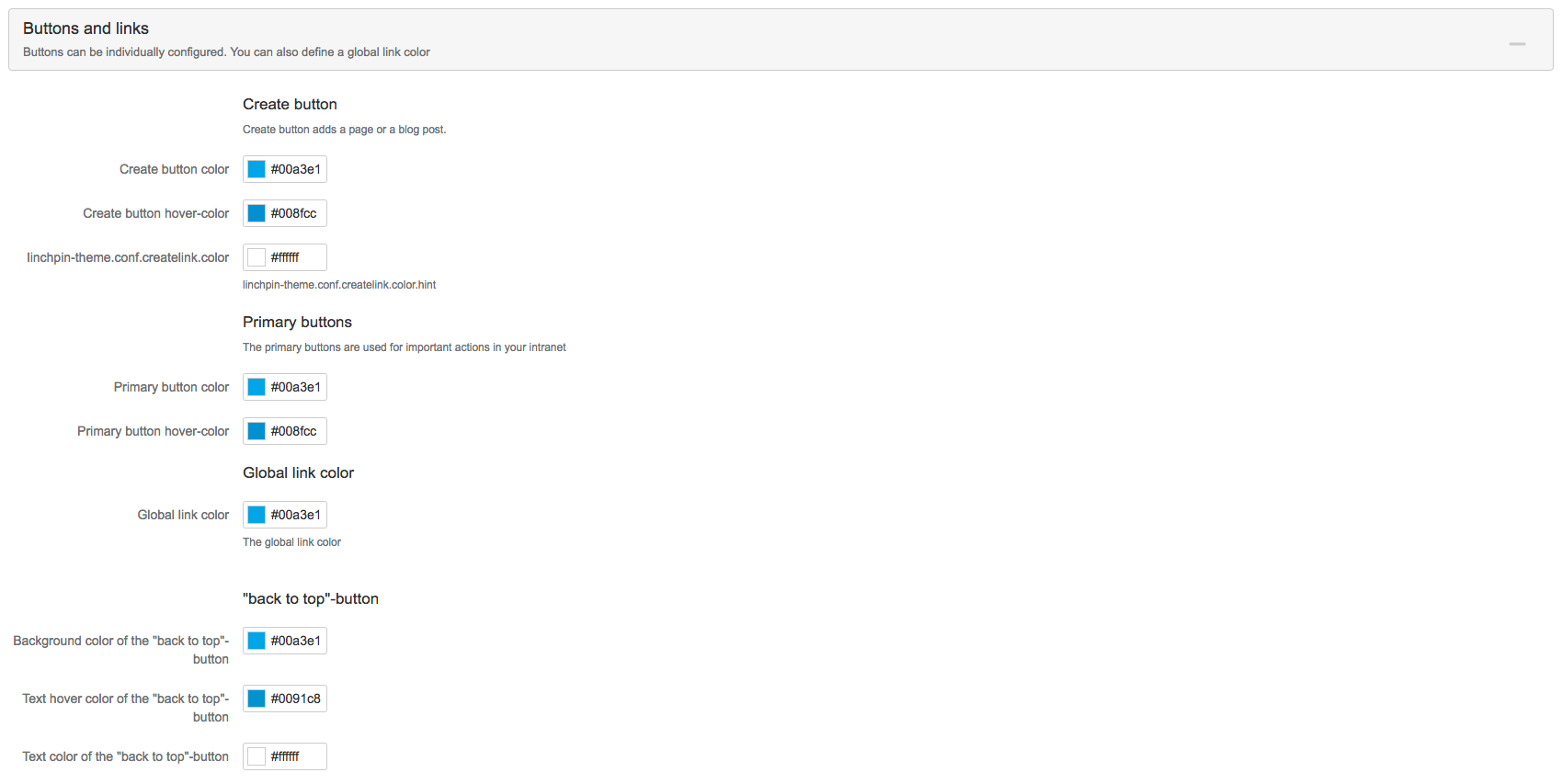
Navigate to Confluence administration > Linchpin Theme > Configuration > Buttons and links.
"Create" button
The "Create" button is located inside your header. It's used to create a page, a post etc.
Primary buttons
A primary button, for example, is the "Save" button when creating a new page.
Primary button hover color
Changes the button hover color.
Global link color
Change the color of all your Confluence links.
Some settings for other plugins may override the global link color setting.
"Back to top" button
This button is located in the bottom right corner of your screen. It becomes visible when you scroll down on a page. Click on it to automatically scroll back up.
Color of the back to the top button
Changes the button's background color.
Hover color of the back to the top button
Changes the button's color whenever the mouse cursor hovers over it.
Text color of the back to the top button
Changes the button's text color.
Please note: Make sure that Linchpin Theme is active.
Visit our documentation on how to activate your theme to learn more.

☁️ Looking for a Cloud-based Intranet?
Check out Mantra, your go-to alternative to Linchpin in the Atlassian Cloud!
Mantra is your a comprehensive solution for connecting teams, making collaboration a breeze, and keeping your company's internal communication strong and streamlined - all in the cloud.