

App Center - Access your external tools
Create your own set of apps to access external systems from within your intranet
See the documentation for your Release
Table of Contents
Access your intranet's App Center
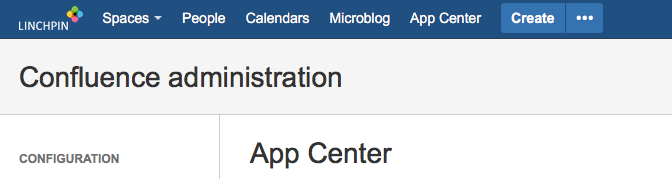
Where your intranet shows the App Center depends on the installed theme. In a standard Confluence installation you'll find a link to the App Center in the topmost bar, the application header. Simply click on the button App Center and it will open and show all apps.
Compile your favorite and most useful apps
Create a new App & create a new App Category
Create a new App
Create a new App Category
Mark an app as favorite
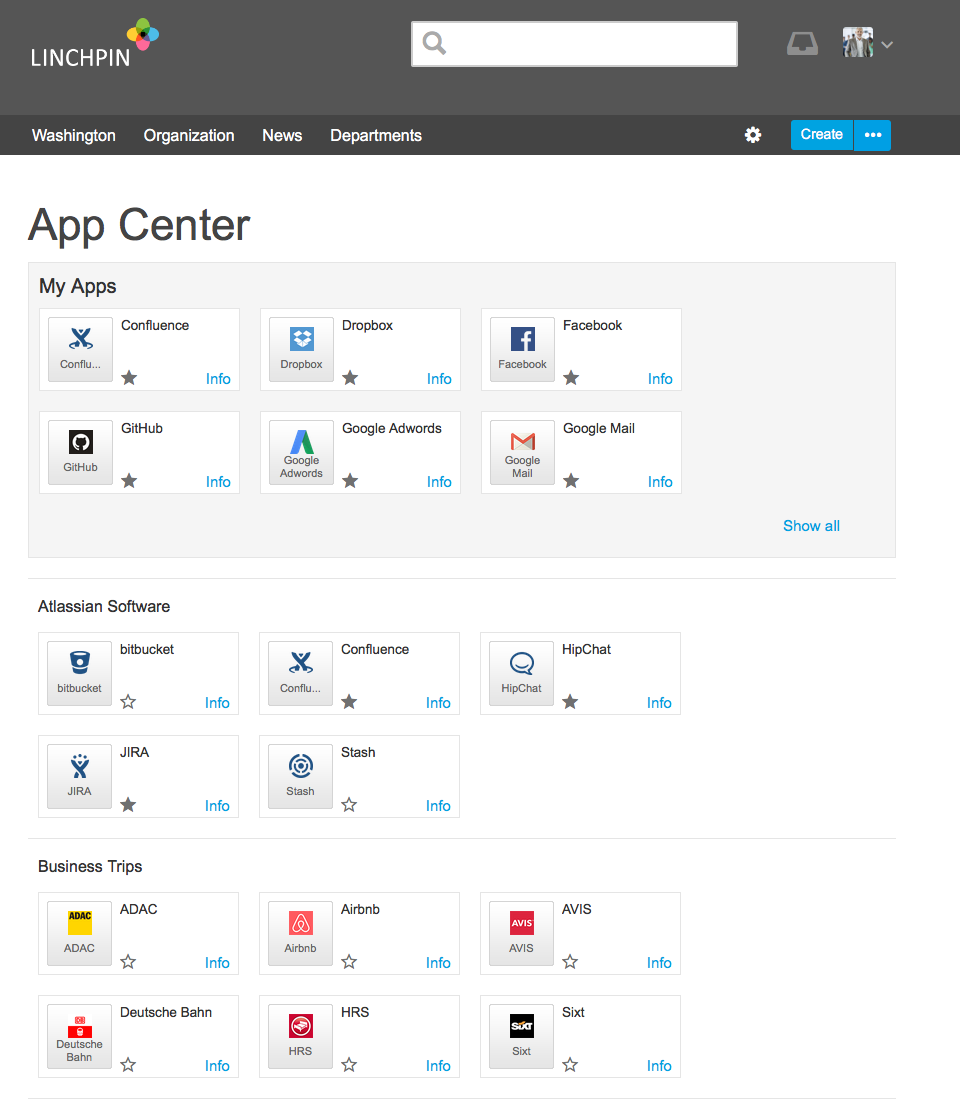
Inside the App Center the topmost category is called "My Apps". This section shows all apps you have favorited previously. This is useful if your intranet offers a wide selection of apps of which you are using only a small number regularly. By favoriting those, you have quick access to the apps you use most often. Additionally you can display those on any page within your intranet.
Depending on the installed theme there might even be a preconfigured section "My Apps" on your dashboard which shows your favorites.
To mark an app as favorite, simply click on the star icon.
To unfavorite it, click on the star icon again.
Recommended apps
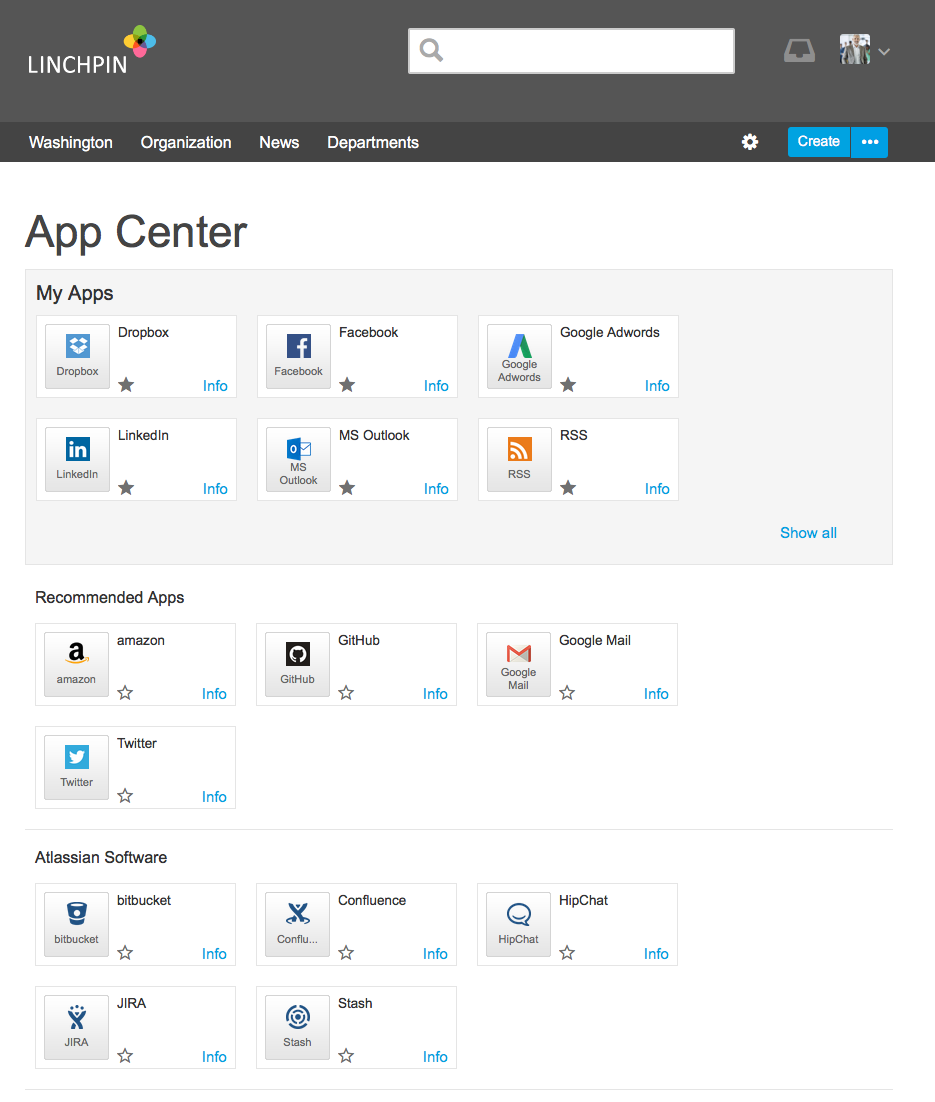
Depending on the way your administrator configured the App Center, there might be a section "Recommended Apps". These recommendations can be personalized based on your profile information. For example there could be recommendations based on your language, your division or other criteria. This helps you selecting important apps, but they'll only show up in your "My Apps" section if you favorite them manually.
This feature is optional, so if you don't see any recommended apps, it's probably not configured.
Display your favorite apps
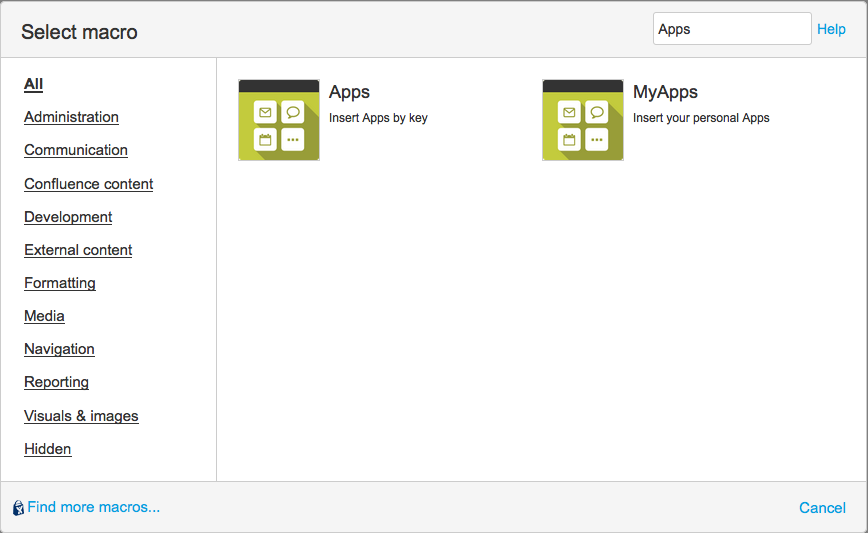
To display your apps on a Confluence page, select "MyApps" from the macro browser. No additional configuration is needed. The macro displays all those apps you marked as favorite on the page.