
DOCUMENTATION
Quick start Guide, Features- everything at hand!
Managed admin dashboard
Our App Dashboard is the single source of truth. Create, edit and see the usage of all custom fields created with our app. Perfect overview and all necessary tools in one place
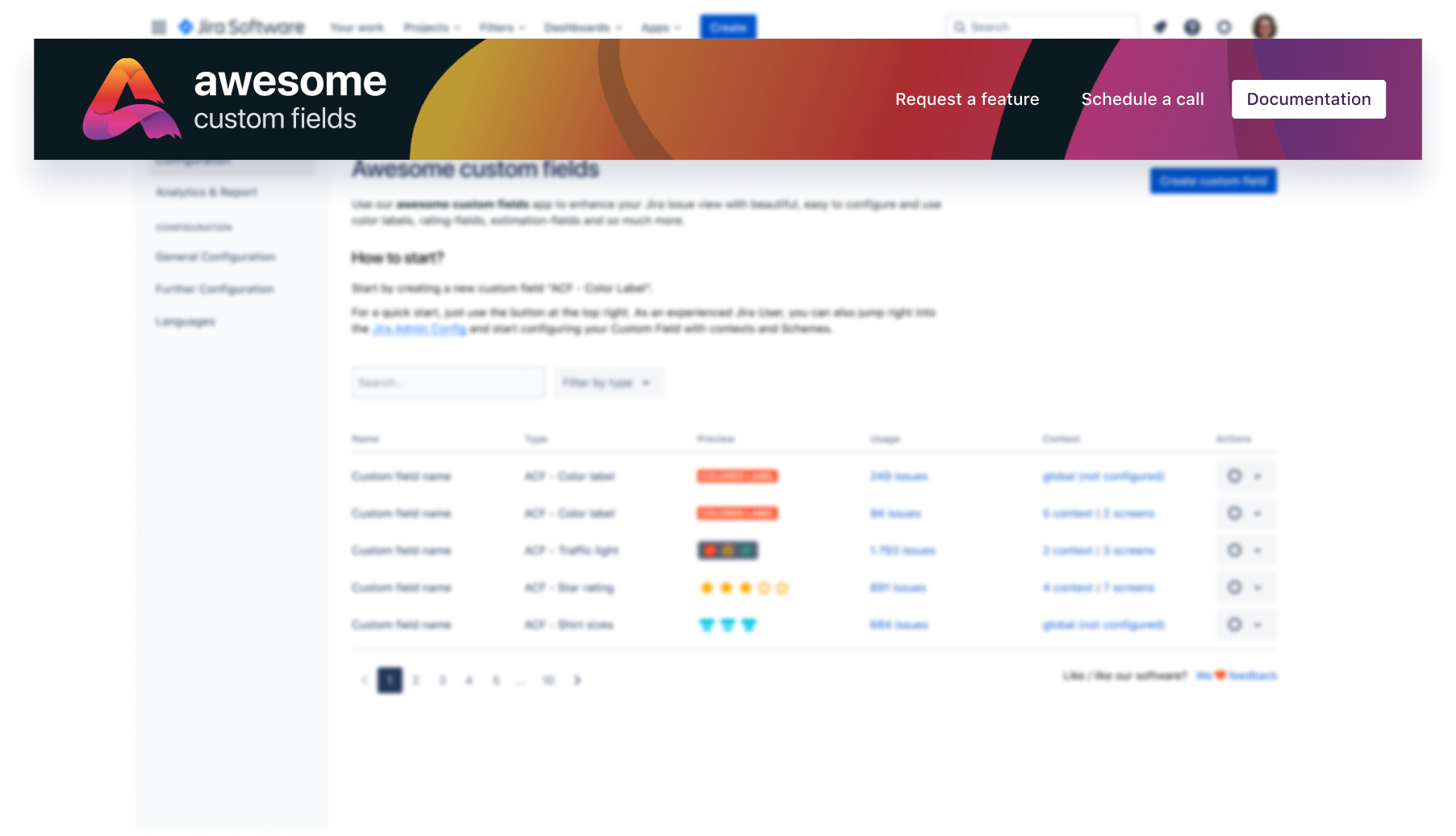
In our recognizable header, you'll find all the relevant jumping off points to help you find your way with and within our app.
Are you missing a specific use case? Jump to our canny board and leave your feedback there - uncomplicated and fast. We'll take care of it. We promise.
Need help or want a demo of our app? No problem! Schedule a demo and we'll talk about your questions, problems and requirements.
And last but not least: Need help and want to search for it in the documentation? This way. Everything in the header.
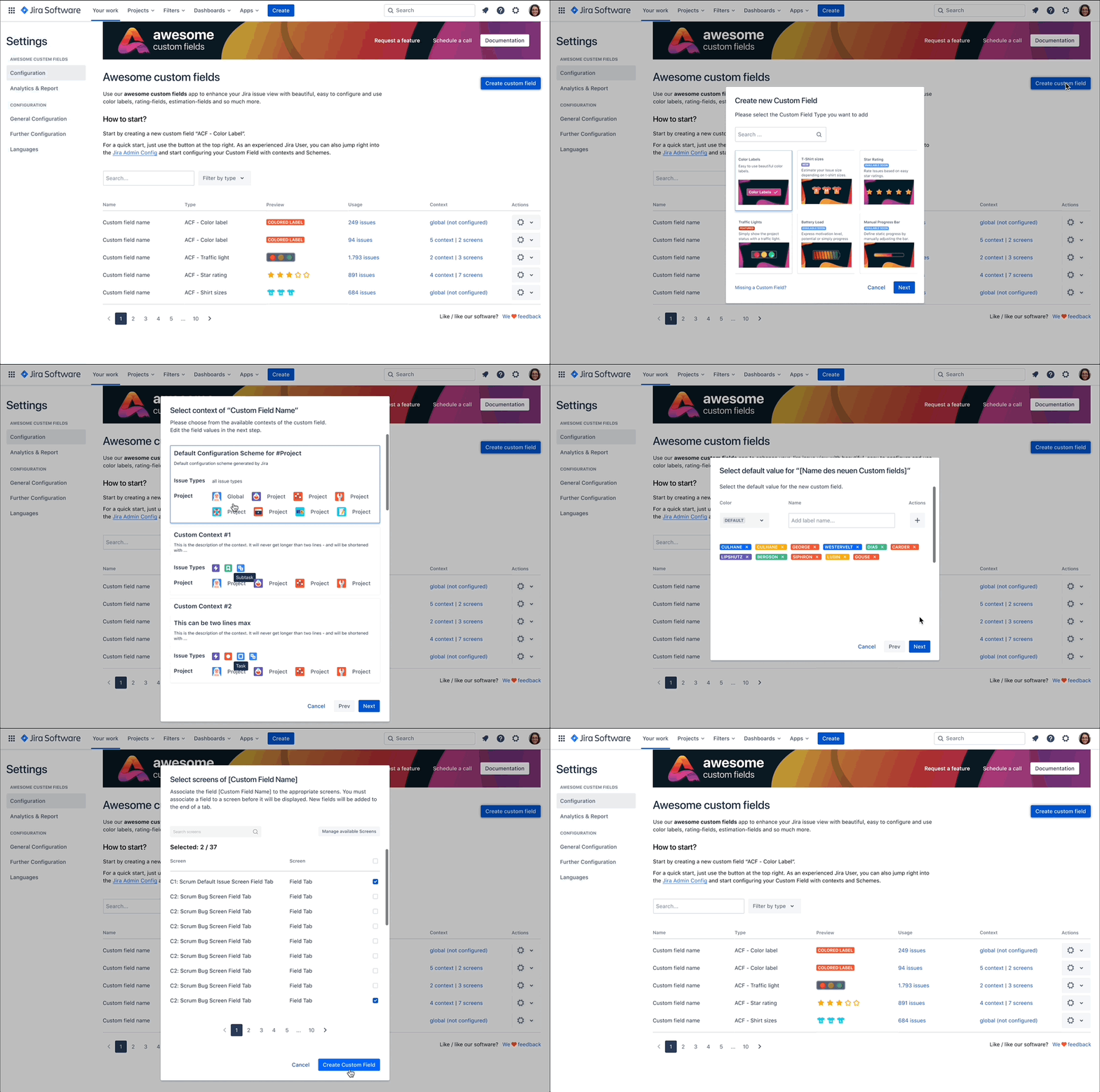
A small button with a big impact. Creating and editing custom fields in Jira involves complicated and hidden settings. Our Create Wizard does 90% of the work for you and guides you through the creation and configuration process. We've gone through the settings for you and provide guidance whenever needed so that you can easily and intuitively create, use and populate your custom fields.ss
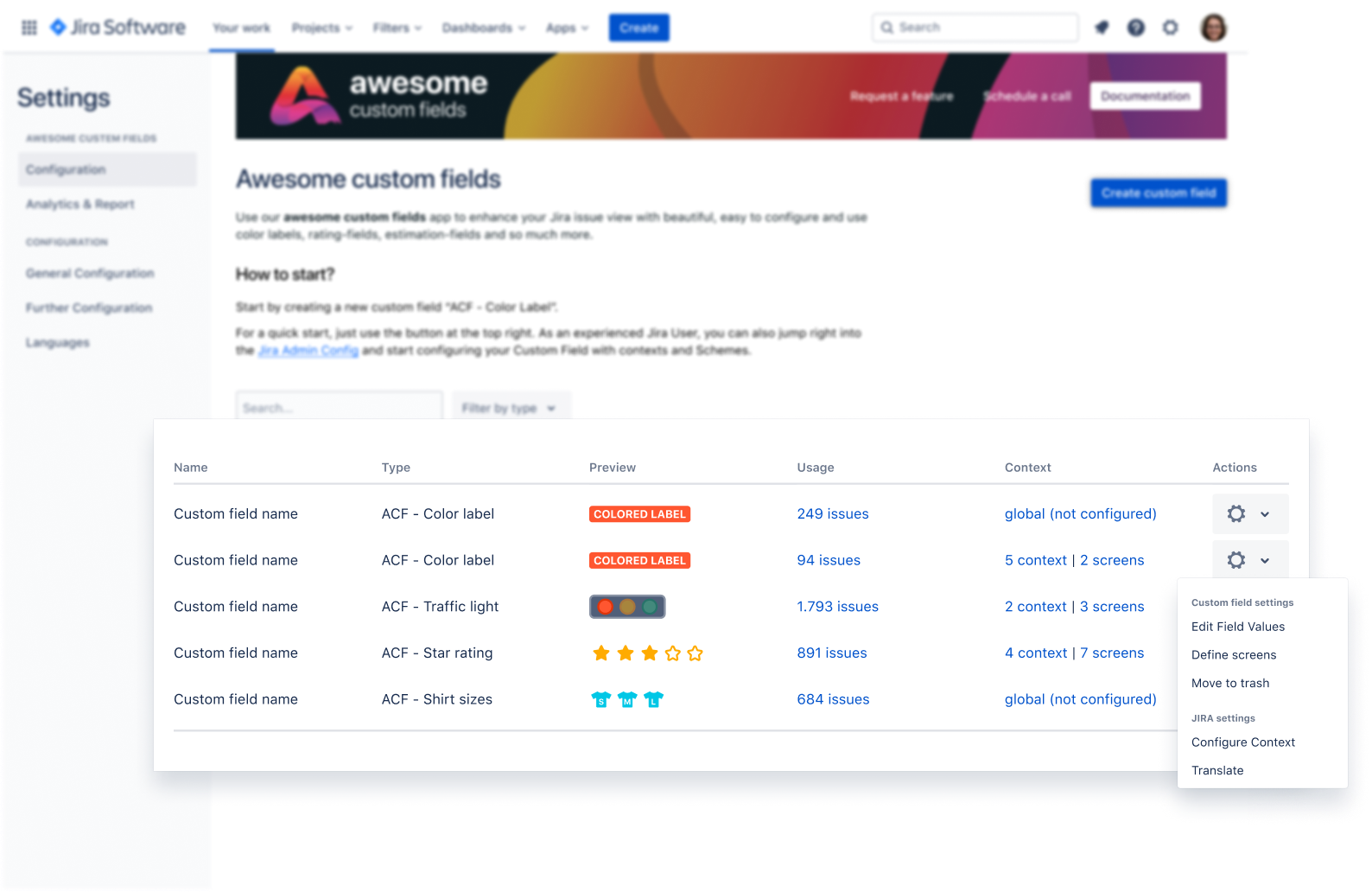
We call it the heart of our application: The Custom Field Table. A simple overview with all relevant information immediately visible.
In the table you will find information about the usage, the assigned screens and contexts, and above all, you can make all content and settings directly via the action menu. Without having to fight your way through the complicated and opaque administration of Jira.
in addition to the simplified configuration and customization of custom fields of this app, it is still possible to configure the settings via the conventional way of Jira administration. We hereby offer a simplified and improved way to use and configure custom fields.
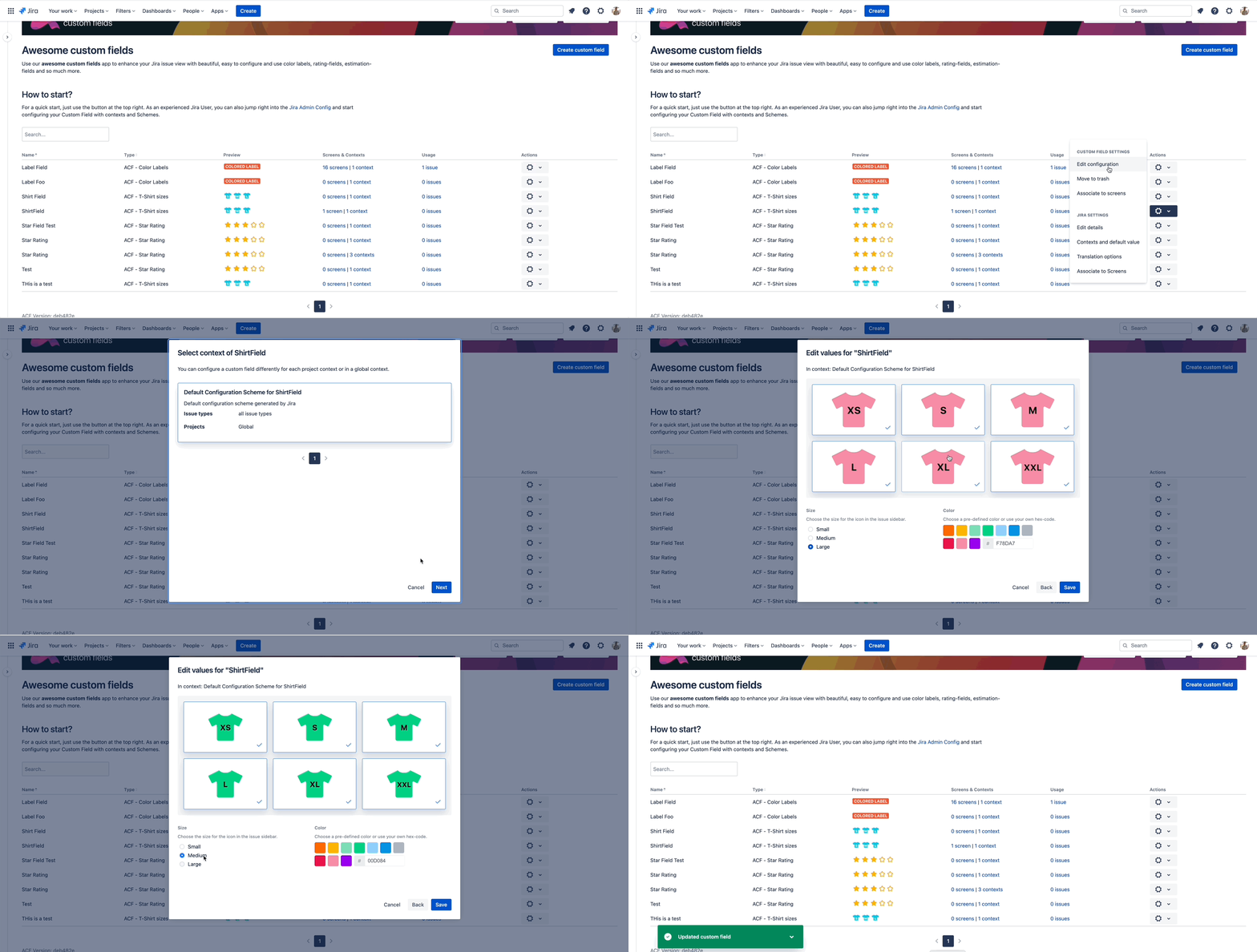
How to edit existing custom fields
Use the action menu in the dashboard table to edit and configure your custom field exactly the way you want
How to edit existing custom fields
Use the action menu in the dashboard table to edit and configure your custom field exactly the way you want
Assigning Screens to created custom fields
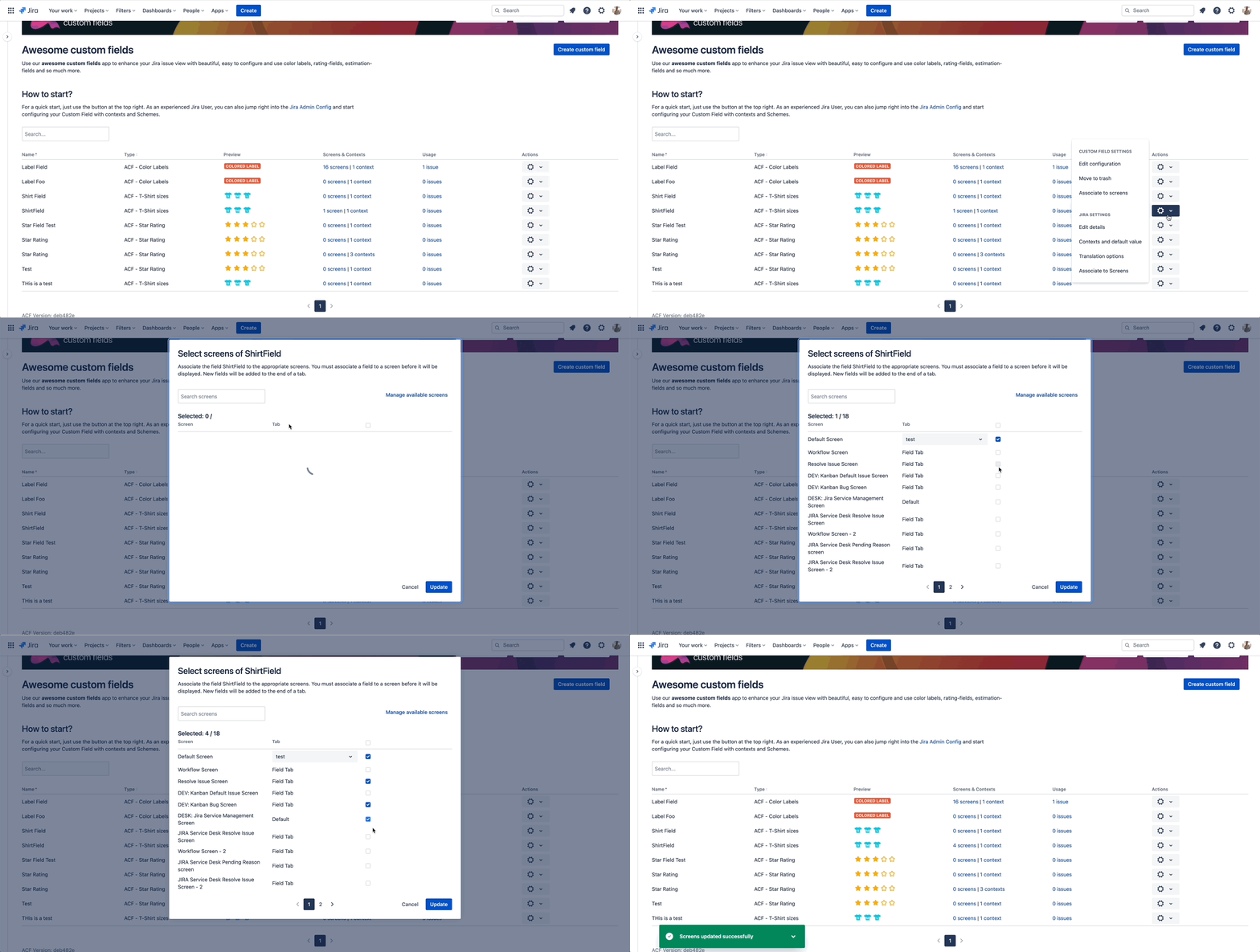
With the ACF app, it is possible to customize the screen assignment directly from the dashboard when creating as well as editing a field.
- Use the Create Wizard while creating a new custom field:
Simply select the appropriate screens in which the field should be displayed in the last step of the create wizard or via the action menu. - Edit an existing field directly via the actions-menu in the content table.
Just like you are used to from the Jira administration - only much faster and directly from the app.
Jira allows a maximum of 100 screens per field, which is why it can lead to problems with a larger number of screens. Once you reach the limit we will redirect you to the Jira Administration.